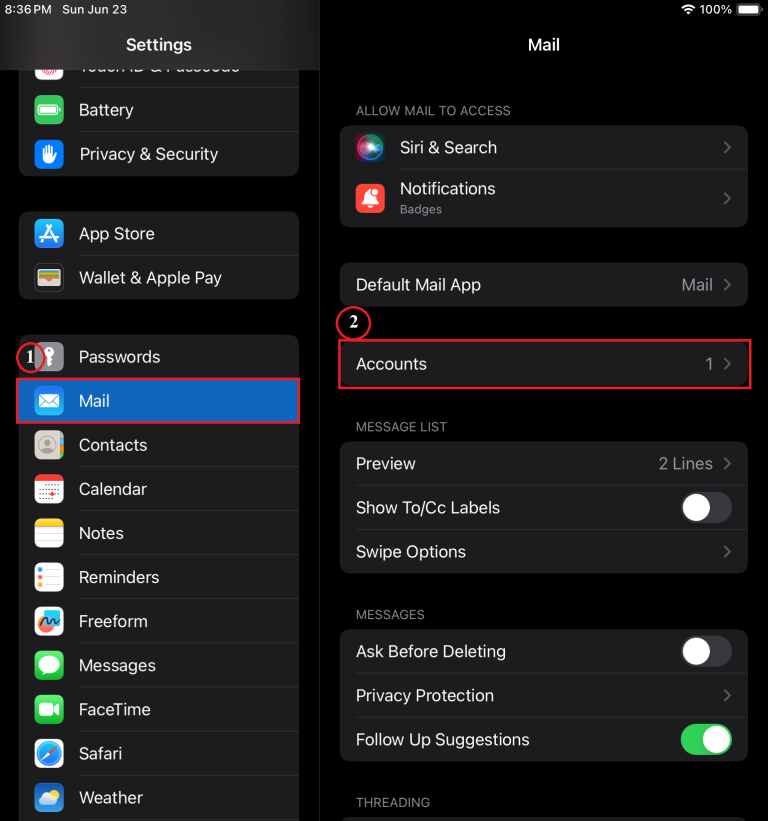
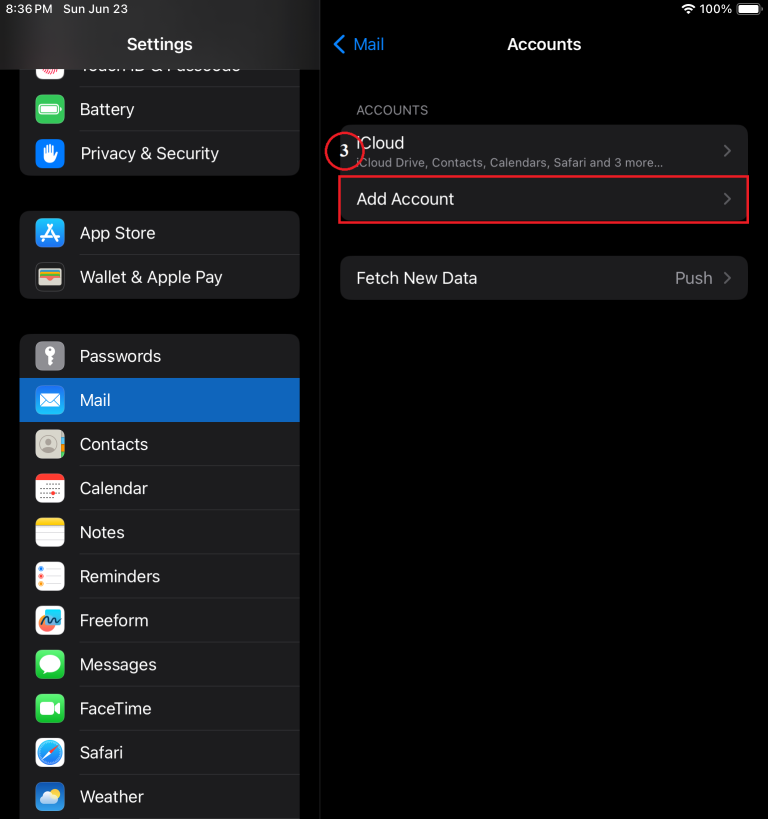
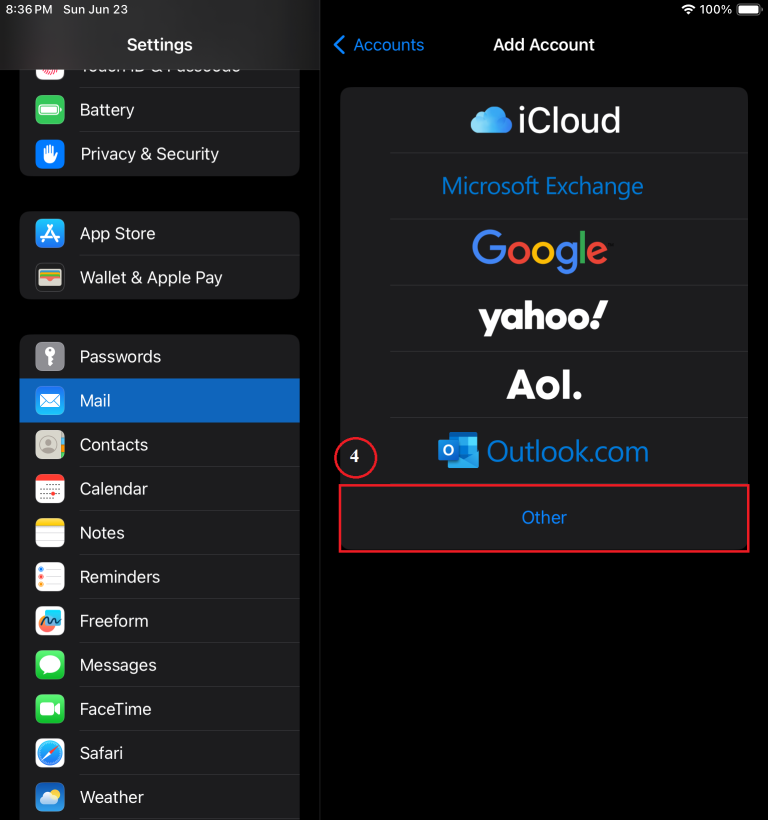
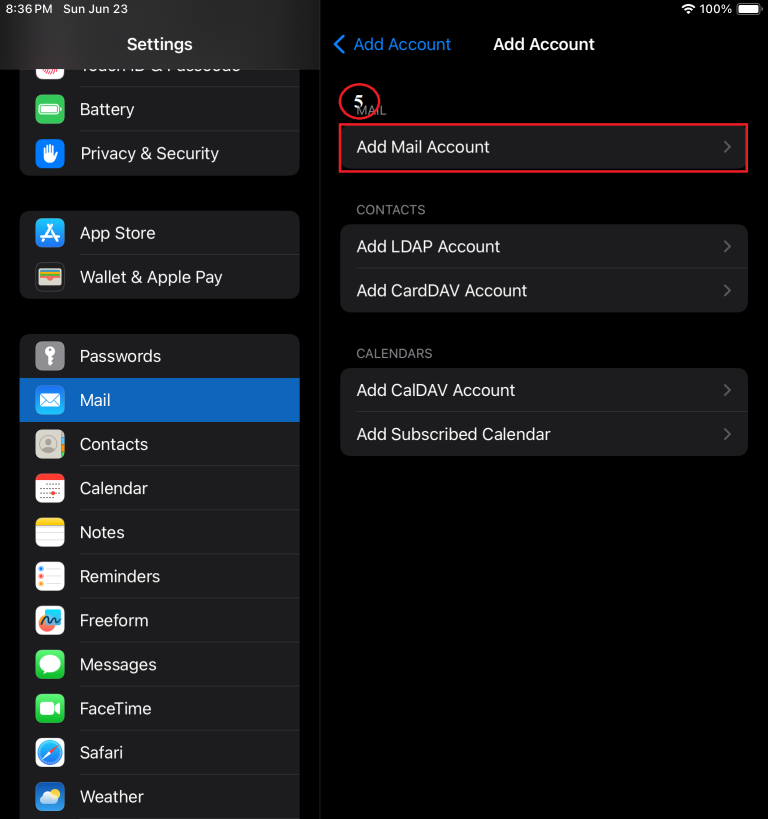



Discover the power of Spike Mail, the innovative email client that transforms your Android experience! With its unique chat-like interface, Spike Mail makes managing your emails feel effortless and engaging. Imagine seamlessly integrating audio recordings, video calls, and document sharing all in one app. Whether you’re collaborating with colleagues or staying connected with friends, Spike Mail offers a versatile solution for all your communication needs. Ready to elevate your email game? Follow our simple setup guide to get started and unlock a world of productivity on your Android device. Don’t miss out on this game-changing tool!

How to setup a TP-Link HC220-G5 Router The TP-Link HC220-G5 router is essentially ready to be used right out of

General troubleshooting steps for almost any Computer, or device plugged into the network. If you’re like me, then that flowchart

City of Eloy Alarm Ordinance and Permitting Get to know the alarm permit process in Eloy, Arizona, which regulates and