
How to Setup Email on Android – Edison Mail

Setting up Email on your Android device – Edison Mail.


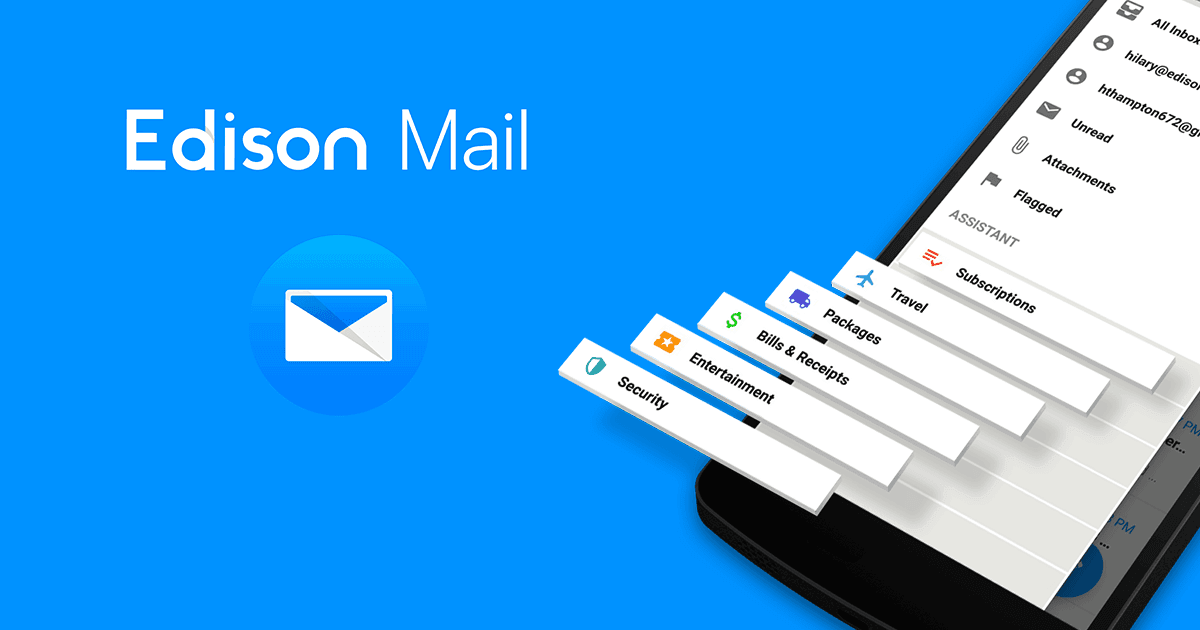
Edison Email Client is definutely one of the more popular Email applications available for Windows, Android, Apple iOS, and MacOS. It is completely free and very simple to use. Its claim to fame is their  “one tap unsubscribe” function. It allows you to unsubscribe from bulk messages and block the sender in one quick action. It is quick, works in real time, and gets your inbox in tip top shape quickly.

To add your Email to Edison Mail simply do the following:

1st things first, if you haven’t already installed Edison Mail, you need to install Edison Mail from the Play store or just click THIS LINK.

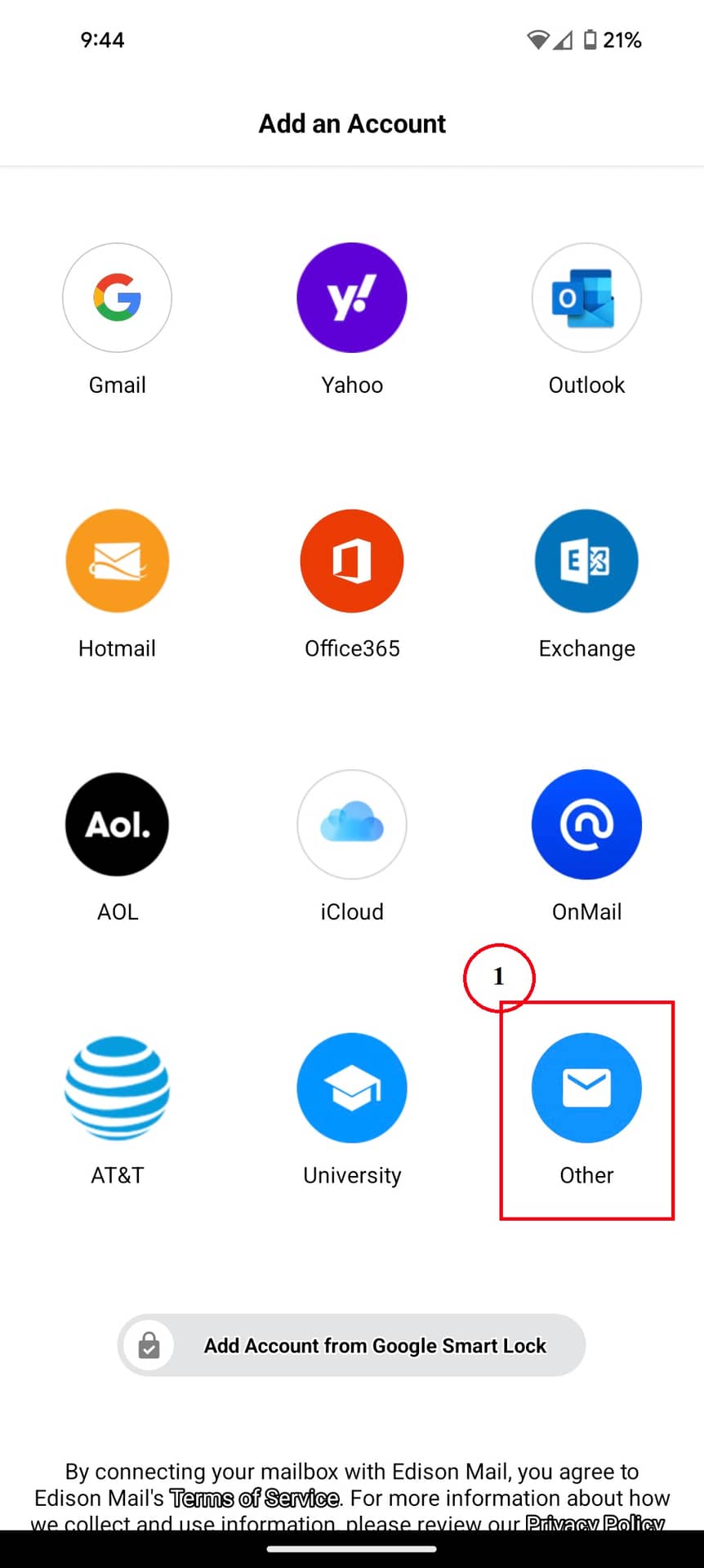
  1. Open Blue Mail and click on “Other“.

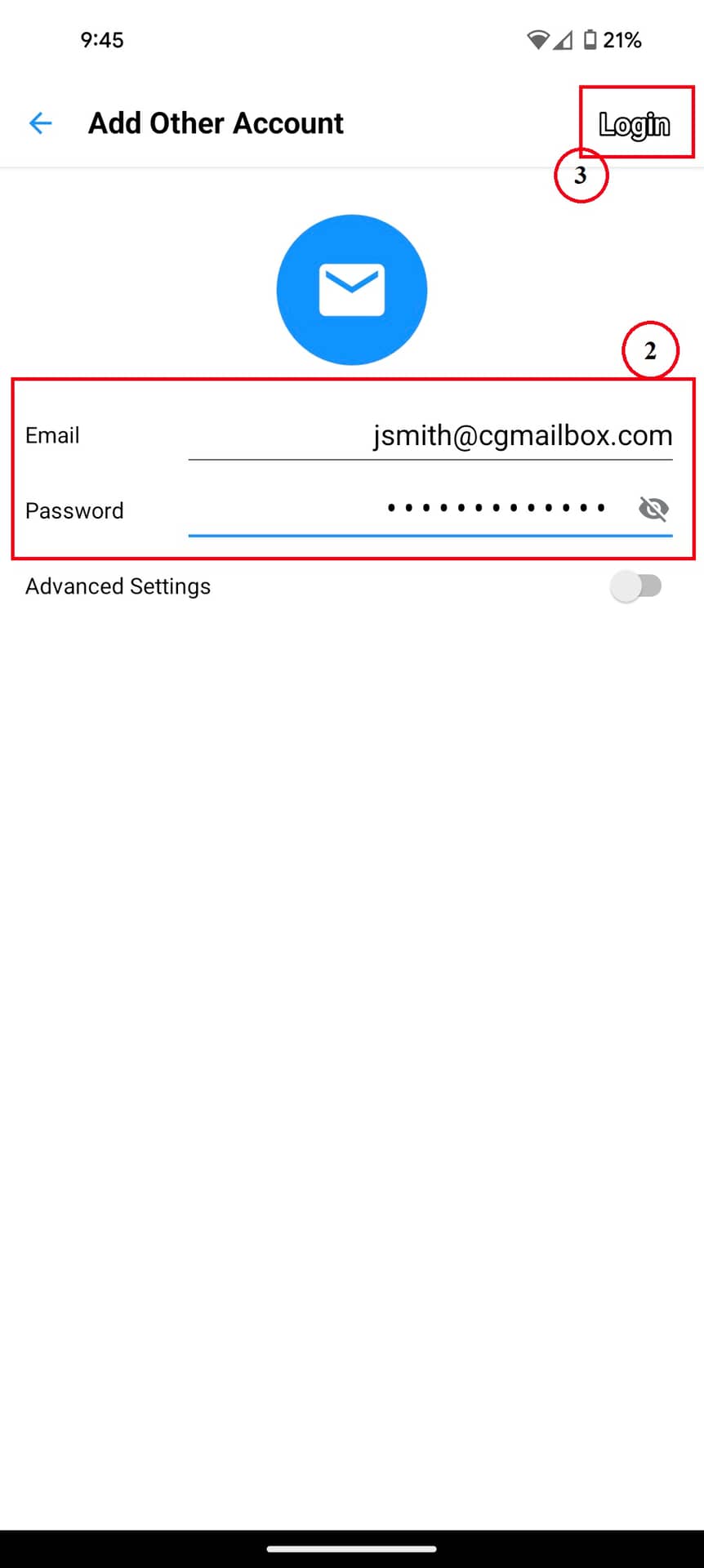
2. Enter your “Email Address” and “Password“.

3. Click “Login“.

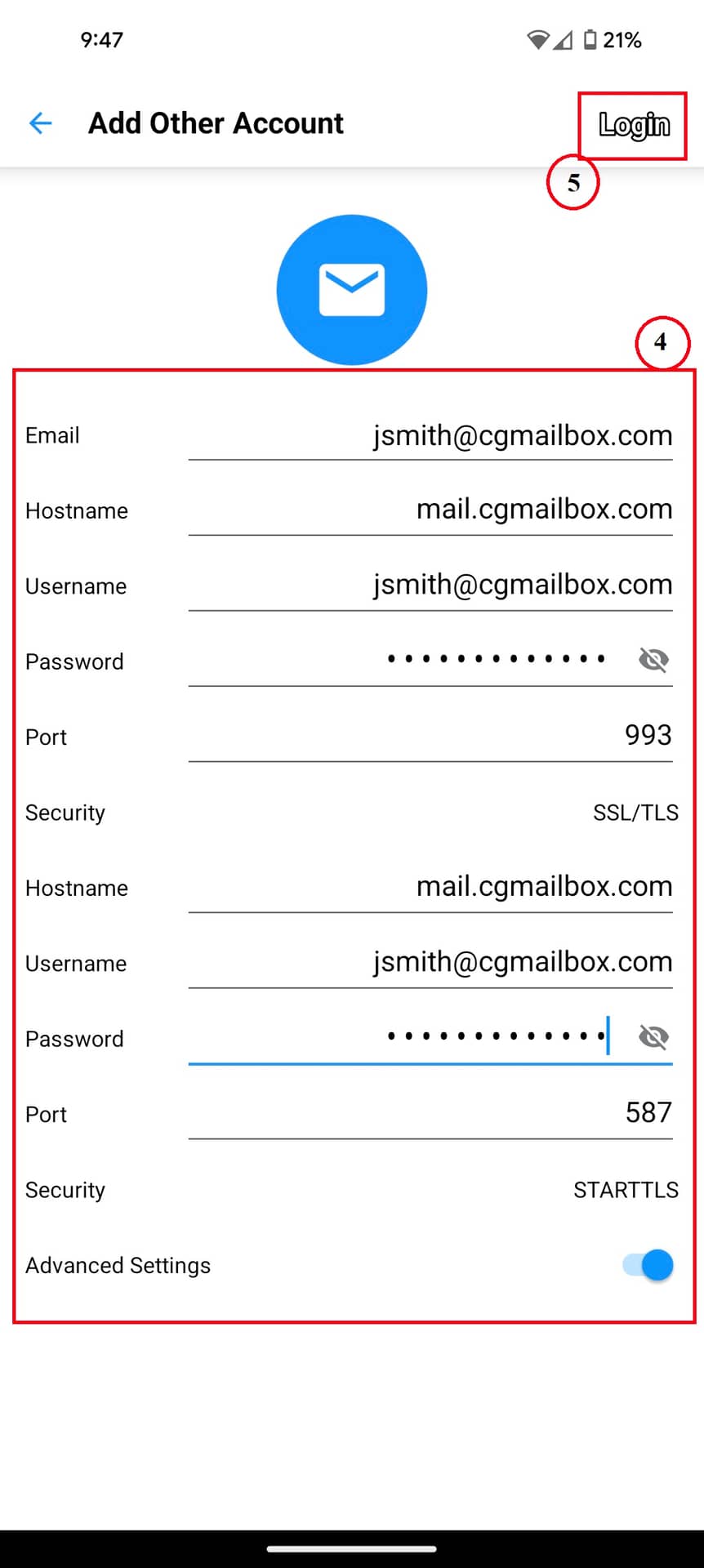
4. Enter the following information:

  • Email: Email Address
  • Hostname: mail.cgmailbox.com
  • Username: Email Address
  • Password: YourStrongPassword
  • Port: 993
  • Security: SSL/TLS
  • Hostname: mail.cgmailbox.com
  • Username: Email Address
  • Password: YourStrongPassword
  • Port: 587
  • Security: STARTTLS


5. Click “Login“.

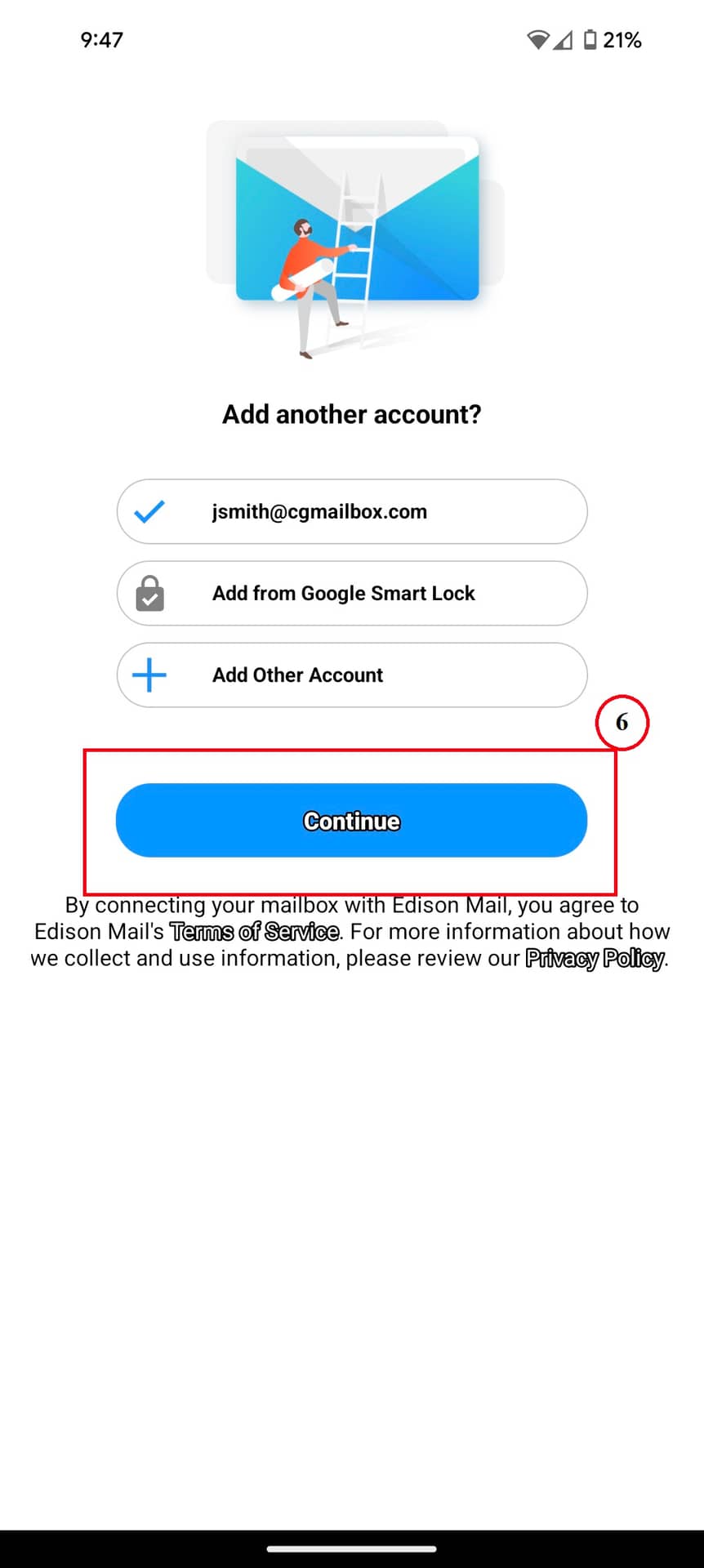
6. If you have another Email to add, click “Add Other Account“, or just click “Continue“.

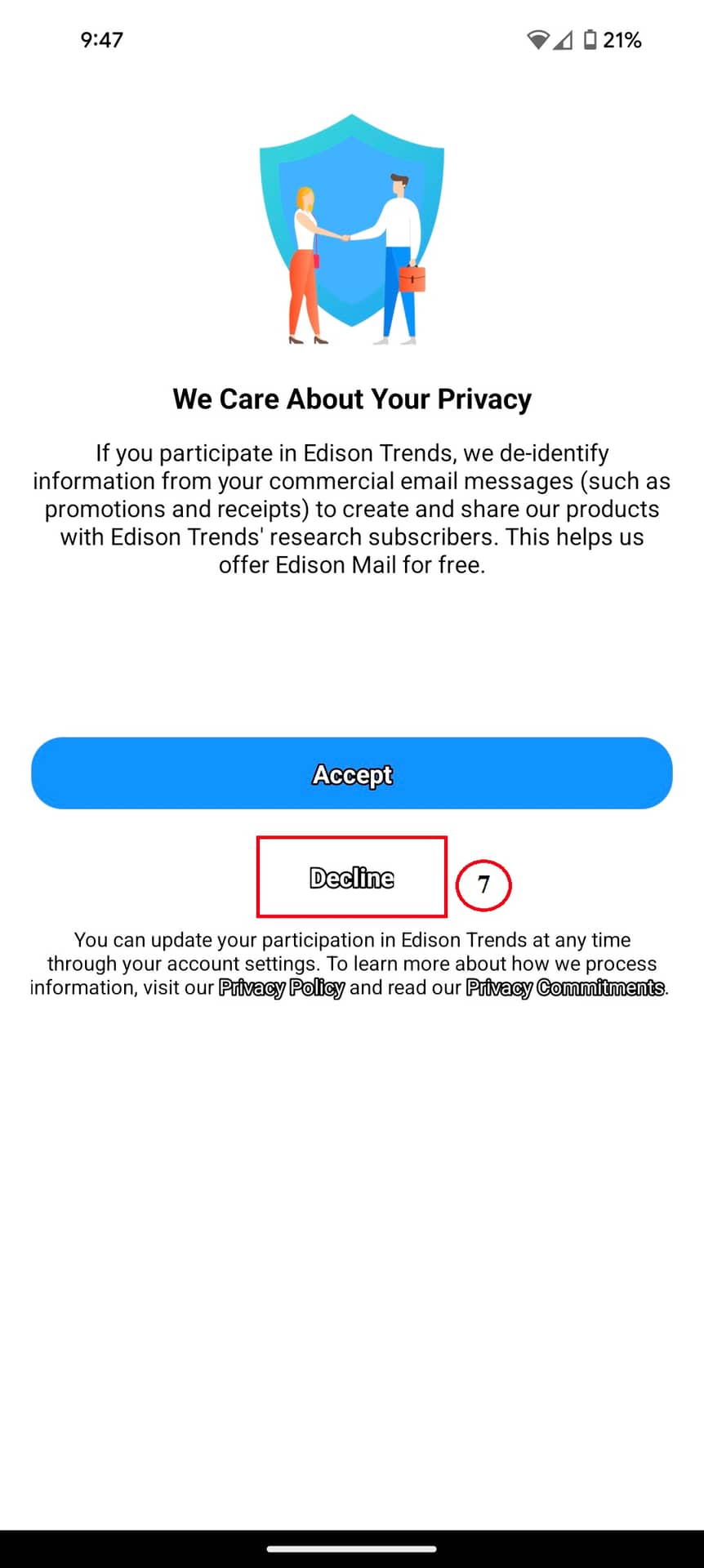
7. If you want to opt out of sharing your information, click “Decline“. 

That’s it! You’ve successfully setup Edison Mail on your android device.

Share the Post:

Related Posts

Verify Email settings on iOS

Are you experiencing issues with your email on your Apple device? Don’t worry! Our simple guide will help you verify and configure your cgmailbox.com or cgaz.com email settings effortlessly. From checking your incoming server to ensuring SSL is enabled, we cover all the essential steps to get your email up and running smoothly. Whether you’re a tech novice or a seasoned user, our straightforward instructions will make the process a breeze. Dive in to ensure your email is set up correctly and enjoy seamless communication on your Apple devices!

Read More