
Setting up Email on your Windows device – Thunderbird Email.
Thunderbird is a free, open-source, cross-platform application for managing Email, News Feeds, Chat, and News Groups. It is a local email application, meaning it installs and runs as a client on your computer, being rather than browser or web-based. It is powerful yet easy-to-use and has a ton of useful features.
To add your Email to Mozilla Thunderbird simply do the following:
1st things first, if you haven’t already installed Mozilla Thunderbird, you need to install Mozilla Thunderbird. Google it, download, and install it… or just click THIS LINK.
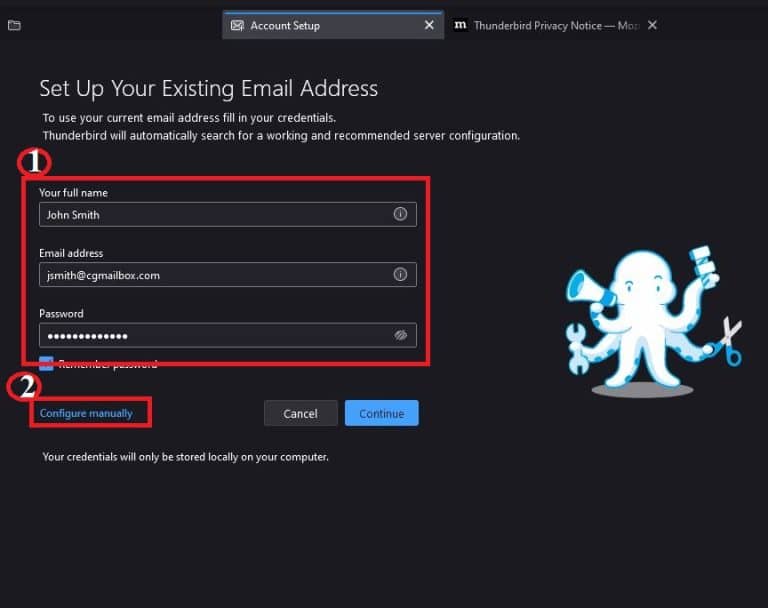
- Open Thunderbird EMail (it’ll take you into the setup screen immediately). Enter your “Full Name“, “Email Address“, and “Password“.
- Click on “Configure Manually“.
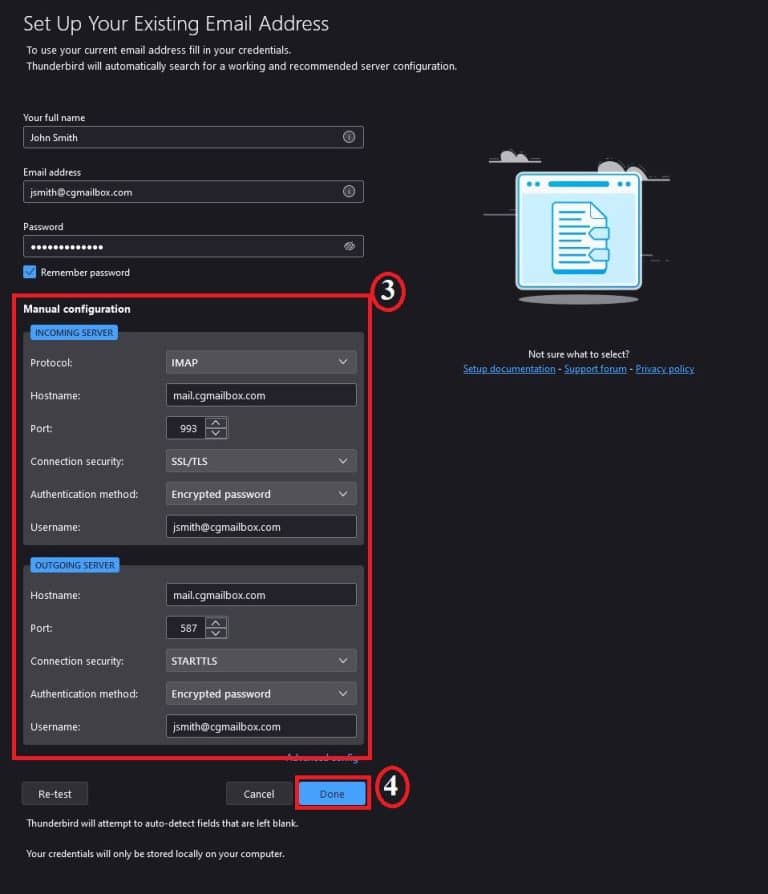
3. Enter the following information:
Incoming Server
- Protocol: IMAP
- Hostname: “mail.cgmailbox.com“
- Port: 993
- Connection Security: “SSL/TLS“
- Authentication method: “Encrypted Password“
- Username: “Email Address“
Outgoing Server
- Hostname: “mail.cgmailbox.com“
- Port: 587
- Connection Security: “STARTTLS“
- Authentication method: “Encrypted Password“
- Username: “Email Address“
4. Click on “Done“.
5. Click “Finish“.
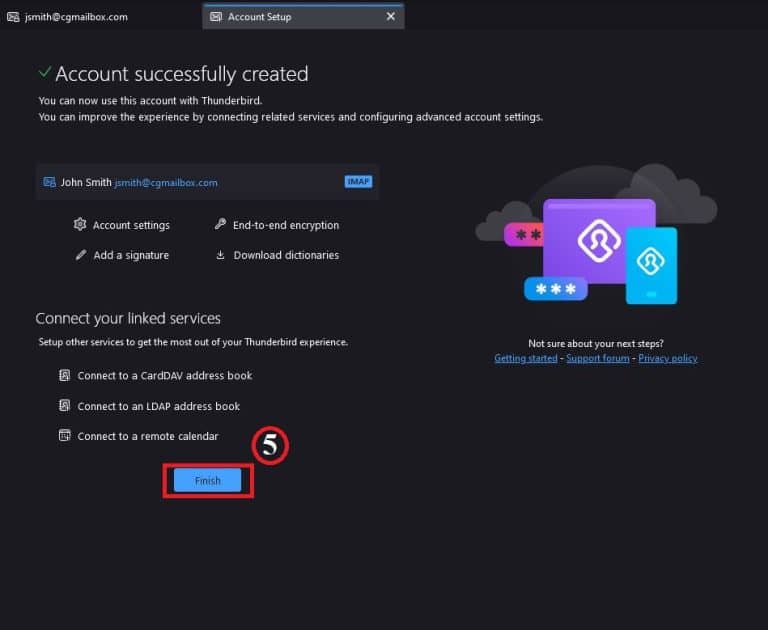
That’s it! You’ve successfully setup Thunderbird E-Mail on your Windows device.